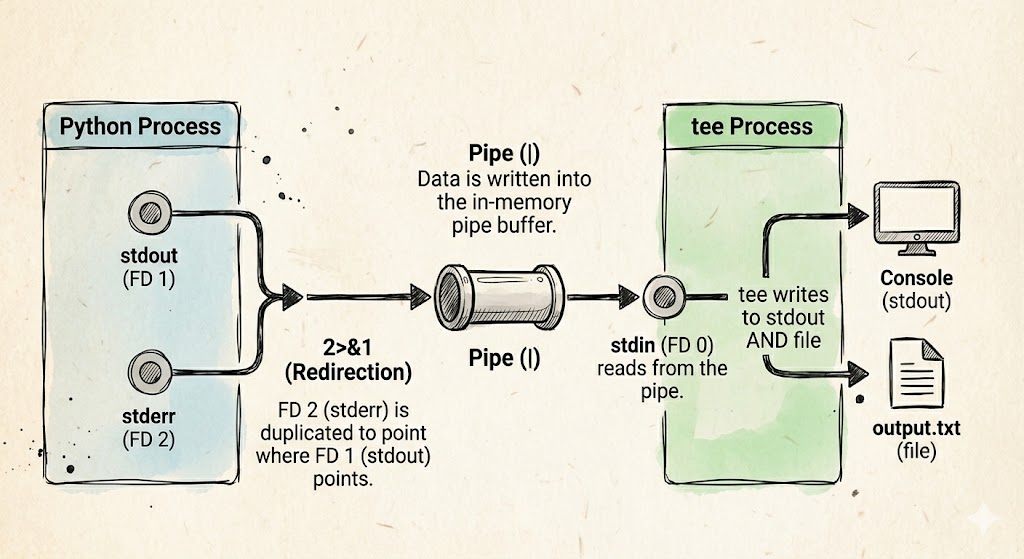
To master logs, you need to understand what standard streams are: the channels that connect the inputs and outputs of a computer system in a predefined way (meaning the system already works like this out of the box). There are three:
- stdin or standard input
- stdout or standard output
- stderr or standard error output
In the early days of computing, a physical console with a keyboard was connected via a cable — these streams are an abstraction of that original connection.
In interactive console applications, these inputs and outputs go through the keyboard and screen. In non-interactive applications, the output is redirected to log files. The output of one process can be piped into the input of another, for example:
cat /var/log/file.log | grep foo
Here, the output of cat is hooked up to the input of grep.
From physical to abstract
Programming processes in the early days was tedious: you had to specify the input and output of each process, and you could only use physical devices. “This program reads from this magnetic tape and dumps it to this dot-matrix printer.” This required packing the code with complex instructions to control hardware directly. Unix-style operating systems simplified this by abstracting the hardware, declaring a single input and output for the programmer to worry about.
Let’s imagine a Python program that opens a file with a random name, writes “OK” to it, closes it, and exits.
We run it in a Linux bash console, which has the three streams we just mentioned in its File Descriptor Table.
python program.py
When we run this line, the shell process calls fork() and execve(). The first call creates a child process with its own File Descriptor Table inherited from the parent — those same three entries. When the program opens a random file, say open("/tmp/234255"), a fourth entry gets added.
| File descriptor | Name | - |
|---|---|---|
| 0 | stdin | keyboard |
| 1 | stdout | console |
| 2 | stderr | console |
| 3 | file | /tmp/234255 |
All programs have stdin, stdout, and stderr, even if they don’t use them. ls, for instance, doesn’t read anything from stdin.
Linux programs typically redirect stdout and stderr to the console for convenience (it’s the easiest place to see them), but this abstraction allows for more interesting setups — like sending stdout to the console while redirecting stderr somewhere else entirely.
python program.py 2>/dev/null
Here we’re pointing stderr to /dev/null, the Linux device used to discard output. Any errors the program emits will be silently dropped. It’s the standard way to silence errors when you don’t care about them. The table now looks like this:
| File descriptor | Name | - |
|---|---|---|
| 0 | stdin | keyboard |
| 1 | stdout | console |
| 2 | stderr | /dev/null |
| 3 | file | /tmp/234255 |
Plumbing with tee
Sometimes you don’t want to choose between seeing output on screen or saving it to a file — you want both. That’s what the tee command is for, named after the T-shaped fitting in plumbing.
When you pipe a command into tee, like this:
python program.py | tee output.txt
The shell spins up a second, independent process for tee. Through an in-memory pipe, the OS connects the stdout of the first process to the stdin of the second and it gets configured automatically like this:
| File descriptor | Name | Actual destination |
|---|---|---|
| 0 | stdin | Read end of the pipe (Python’s output) |
| 1 | stdout | console |
| 2 | stderr | console |
| 3 | file | output.txt |
Hey tee’, you have one job: everything you reads from FD 0 (whatever the previous program sent), you write simultaneously to FD 1 (so I can see it) and FD 3 (so it gets saved to disk).
Wait, where are my errors?
A classic gotcha when learning to handle logs is discovering that output.txt is incomplete. This happens because, by default, the pipe (|) only connects stdout (FD 1).
If your Python program crashes and throws an exception through stderr (FD 2), that stream still points to the console and bypasses the pipe entirely. Since tee only listens to what comes in through its stdin (FD 0), the error shows up on your screen but never makes it into the file.
To be a true Logging Pro and capture everything, use the combined redirect:
python program.py 2>&1 | tee output.txt
With 2>&1, you’re telling the shell: “make FD 2 (stderr) point to the same place as FD 1 (stdout).” Now both streams travel through the same pipe and tee captures all of it — making sure your log actually reflects what happened.